

Traces
A trace shows one request as it moves through your services. Each step is a span. The trace view shows every span with its service, its duration and its errors, so you can see where time went and which call failed.
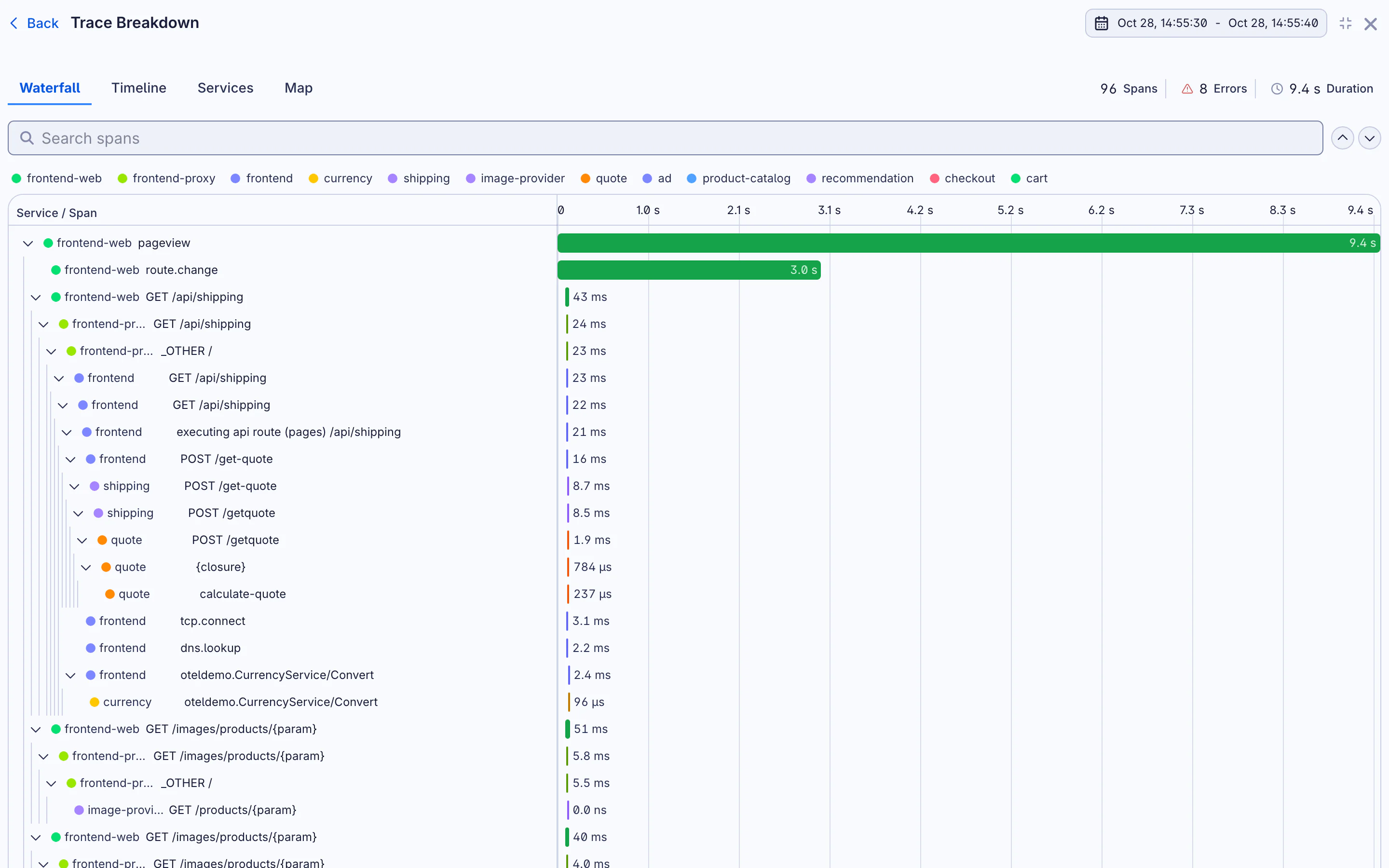
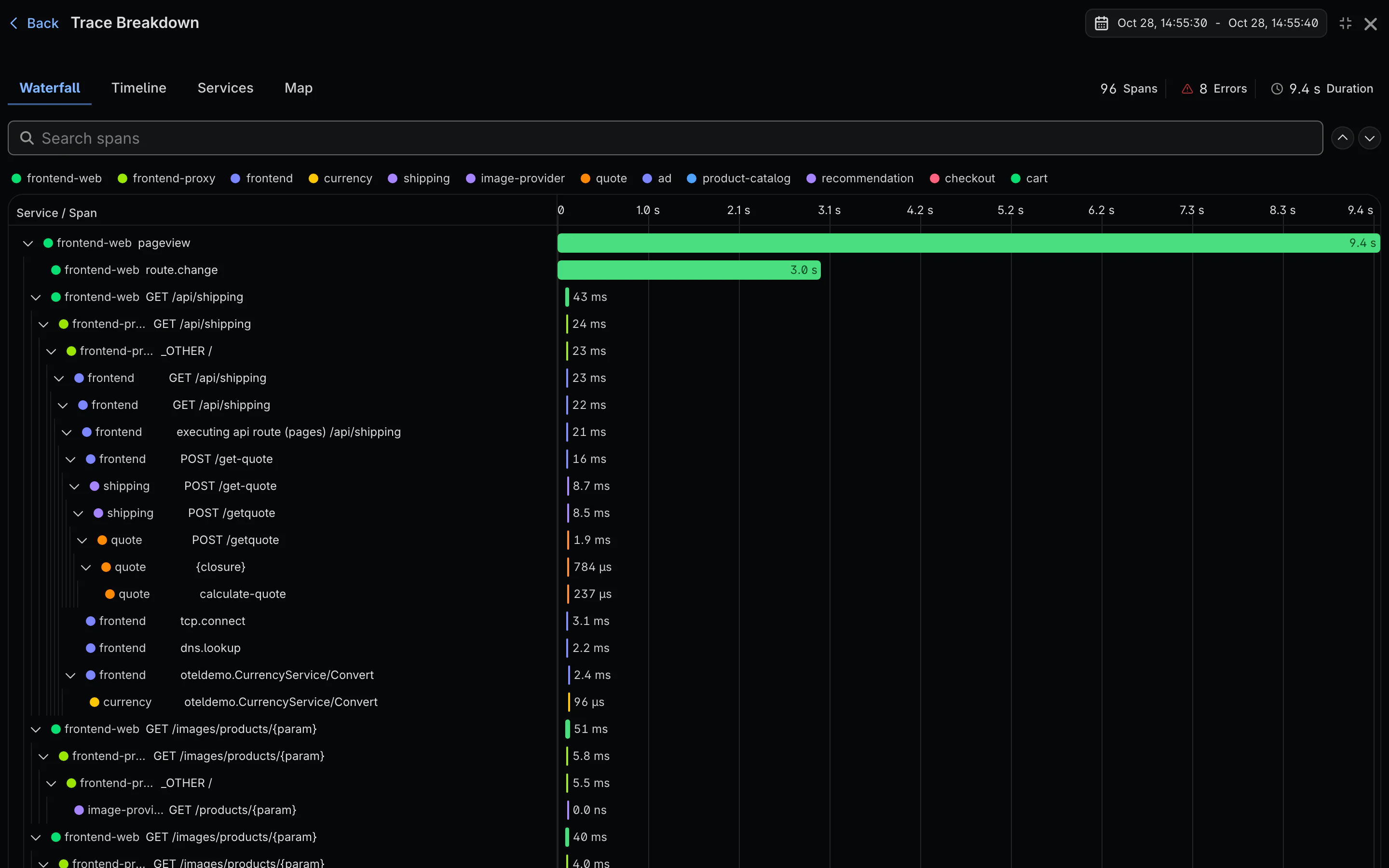
Open a Trace
Read the Trace
The header of the trace shows the time range, the number of spans, the number of spans with errors, and the total duration. Below the header, Trace Breakdown shows the share of execution time for each service.
Four views show the same spans in different ways:
| View | What it shows |
|---|---|
| Waterfall | Each span on a time axis, nested under the span that called it. |
| Timeline | A flame graph of the spans. A wider bar took more time. |
| Services | A list of the spans and their services. |
| Map | The services in this trace and the calls between them. |
If you zoom in on part of the trace, click Reset Zoom to see all of it again.
Click a span to see its details and attributes.
Logs in a Trace
monoscope joins logs to spans by trace ID and span ID. If your logging library adds the trace context to each log line, those logs show next to the span that wrote them. If logs and spans do not join, the Trace correlation audit routine can find the services that do not send the trace context.