

Routines
A routine is an AI review that runs on a schedule. It checks your project for one kind of problem, such as errors that came back or services that stopped sending data, and posts what it finds. Routines are read-only by default. Open the Agents view in the sidebar and click Routines.
Add a Built-in Routine
The Built-in routines catalog has ready-made routines in six categories. Each one shows its schedule, its prompt, and the data it uses. Click Add routine to install one.
| Category | Routine | Default schedule |
|---|---|---|
| Reliability | Daily operations briefing | Weekdays at 09:00 |
| Weekly reliability review | Mondays at 09:00 | |
| Error regression radar | Every hour | |
| Slow endpoint watch | Every hour | |
| Traffic drop watch | Every 30 minutes | |
| Dependency degradation digest | Every hour | |
| Weekly SLO review | Mondays at 09:30 | |
| Telemetry quality | Telemetry gap detector | Every hour |
| Telemetry quality check | Daily at 10:00 | |
| Trace correlation audit | Mondays at 10:00 | |
| Delivery | New service and endpoint digest | Daily at 10:00 |
| Deployment regression review | Daily at 14:00 | |
| Incidents | On-call handoff | Weekdays at 17:00 |
| Incident follow-up ledger | Daily at 11:00 | |
| Alert quality review | Mondays at 11:00 | |
| Cost | Noisy log sources | Daily at 12:00 |
| Telemetry cost watch | Daily at 13:00 | |
| Security | Authentication failure digest | Every hour |
Times are in the time zone of the project. To change it, see Project settings.
Some routines post a report on every run (Then posts a report every run). Others post only when they find something (Then reports only when it finds something), so a quiet hour makes no noise.
Create a Custom Routine
- In the Agents view, click New routine.
-
Write the prompt. Say what to check and what to report, for example
Find checkout requests that took more than 2 seconds in the last hour, grouped by endpoint. - Under Run every, select an hour, a day or a week, or set a Custom schedule.
- Click Save routine.
You can also turn a conversation into a routine. Click Schedule at the top of the conversation, or select Make daily routine.
Manage Routines
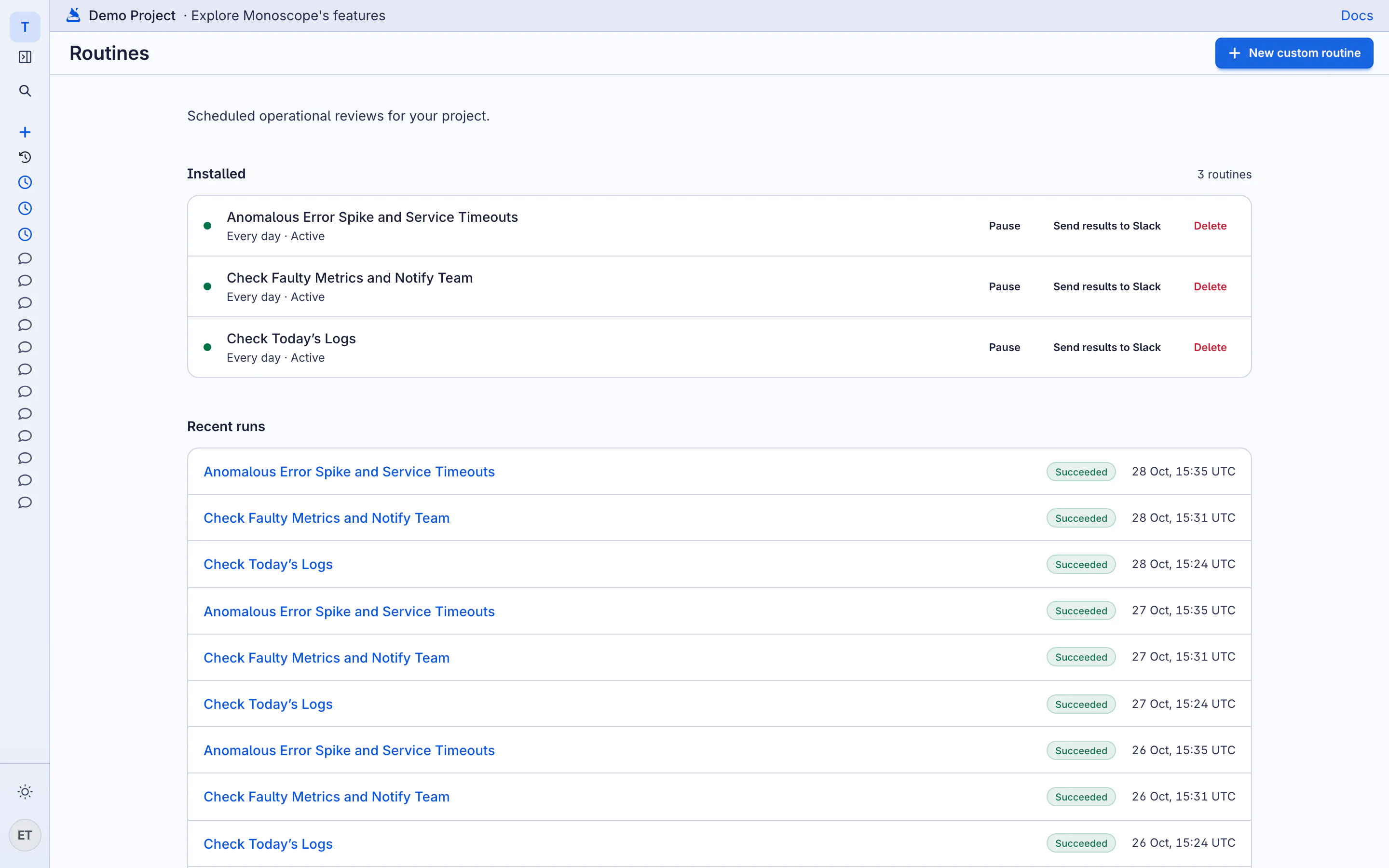
Installed routines show at the top of the Routines page, with their schedule and status.
- Pause stops the schedule. Resume starts it again.
- Send results to Slack posts each result to Slack. Connect Slack first on the Integrations page.
- Delete removes the routine.
Recent runs lists each run with its status (Succeeded, Failed or Timed out) and its time. Click a run to read the result. AI usage is tracked and billed at your project rate.