

Issues
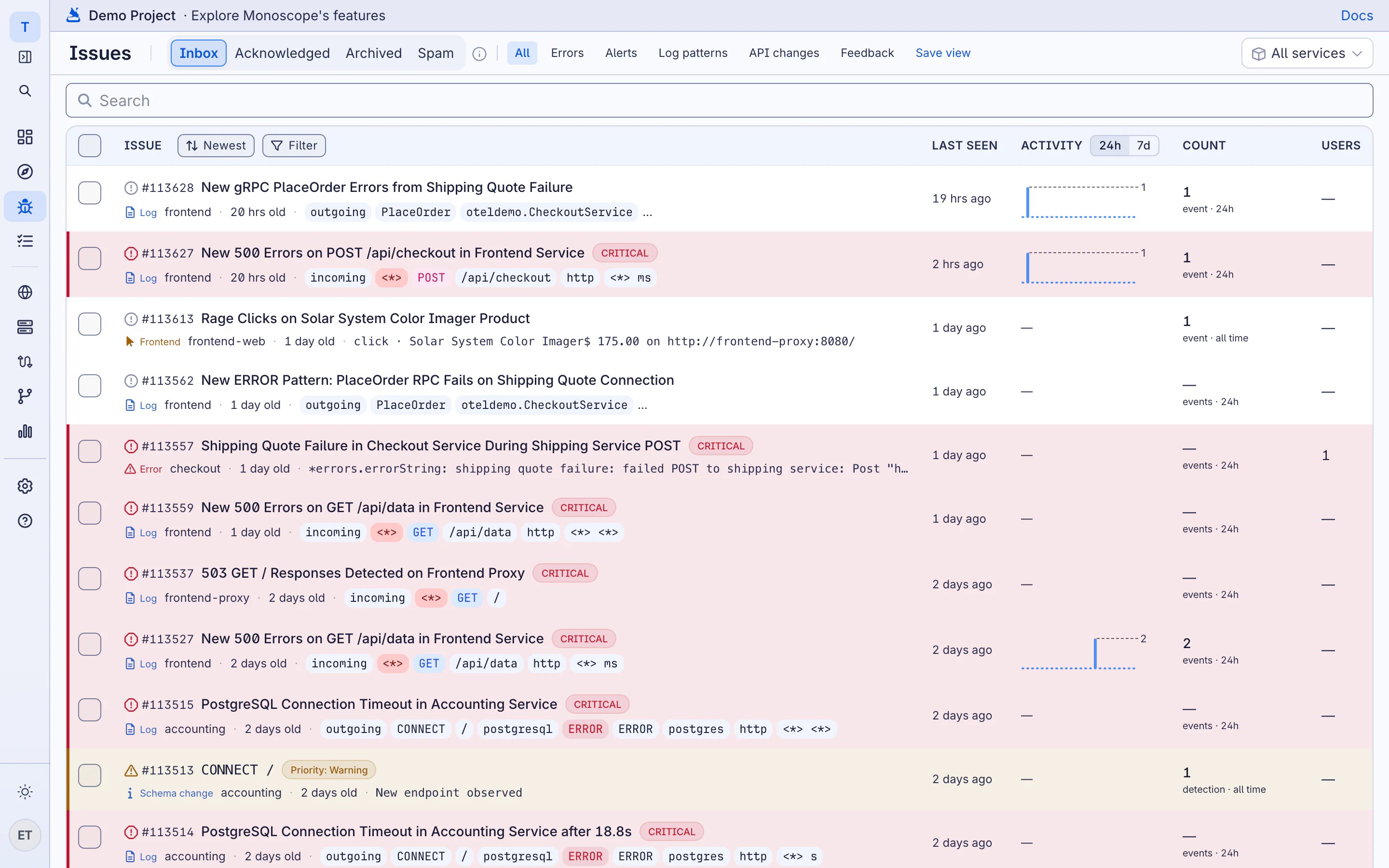
An issue is something in your project that needs a person to look at it: a new error, a change in an API, a monitor that fired, or a new log pattern. monoscope groups matching events into one issue, so 10,000 copies of the same error make one issue with a count, not 10,000 alerts. Open Issues in the sidebar.
Issue Types
Use the chips above the list to show one type at a time.
| Type | What opens an issue |
|---|---|
| Errors | A runtime exception that monoscope has not seen before, from a backend or a browser SDK. |
| Alerts | A monitor that crossed its threshold, a failed uptime check, or a missed cron job. |
| Log patterns | A new log pattern, or a known pattern whose rate changed a lot. |
| API changes | A new endpoint, or fields added to, removed from or changed in a request or response. |
| Feedback | Feedback that your users sent from your app. |
Frontend issues, such as rage clicks, come from the browser SDK.
Triage the List
New issues arrive in Inbox. Move each one to the tab that fits:
- Acknowledge moves the issue to Acknowledged. Use it when someone is working on the issue. You can acknowledge for a set time.
- Archive moves the issue to Archived. You can archive for a set time, or Until it escalates, so the issue comes back if it gets worse.
- Resolve closes the issue. If the error comes back, monoscope notifies you again.
- Mark as spam moves noise to Spam.
Select several issues to act on all of them at once. To combine two issues that have the same cause, select them and click Merge into oldest. To save a set of filters, click Save view.
Read an Issue
Click an issue to open it. The page shows the selected event and the context around it:
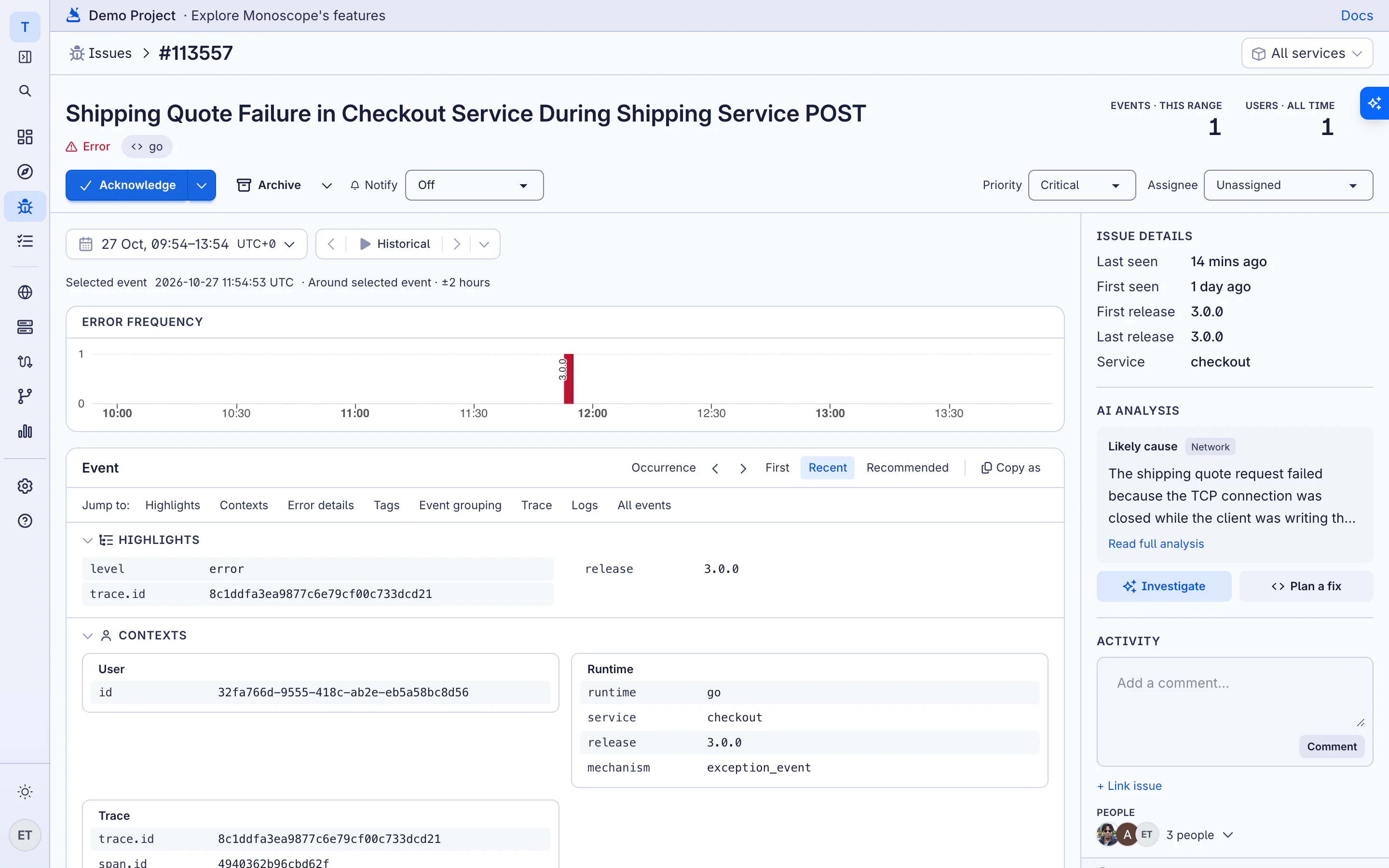
- Highlights and Contexts: the level, the release, the user, the runtime and the trace IDs.
- Error details: the error message and the stack trace.
- Tags: the values of the event tags, with the share of events for each value.
- Event grouping: why events join this issue. monoscope makes a fingerprint from the error type, the message with IDs and numbers removed, the service and the span name.
- Trace and Logs: the full trace of the selected event, and the logs written during it.
- All events: every event in the issue.
Assign, Prioritize and Get Notified
- Assignee: the person who owns the issue.
- Priority: Critical, Warning, Info or Low.
- Notify: how often monoscope notifies you again while the error keeps happening, from Every 10 min to Every 24 hrs. Select Off to stop these notifications.
- External links: paste a GitHub, GitLab, Jira or Linear issue URL to link the issue to your tracker.
New errors and new endpoints are sent to your notification channels. To turn these alerts on or off, open Settings → Project and change Runtime error alerts and New endpoint alerts.
Investigate with AI
The AI analysis panel on the issue page shows the Likely cause when monoscope has analyzed the error. Two buttons start an AI investigation from the issue:
- Investigate opens the AI panel. Ask about the cause, the number of users affected, or a fix. The AI answers from this issue’s telemetry.
- Plan a fix asks the AI for a step-by-step fix plan, with the code changes and the files and lines from the stack trace.
If you connect a repository, the AI can also read the code. See AI SRE.