

Monitors
A monitor runs a query on a schedule and alerts your team when the result crosses a threshold. monoscope also has uptime checks for URLs and cron monitors for scheduled jobs. Open Monitors in the sidebar.
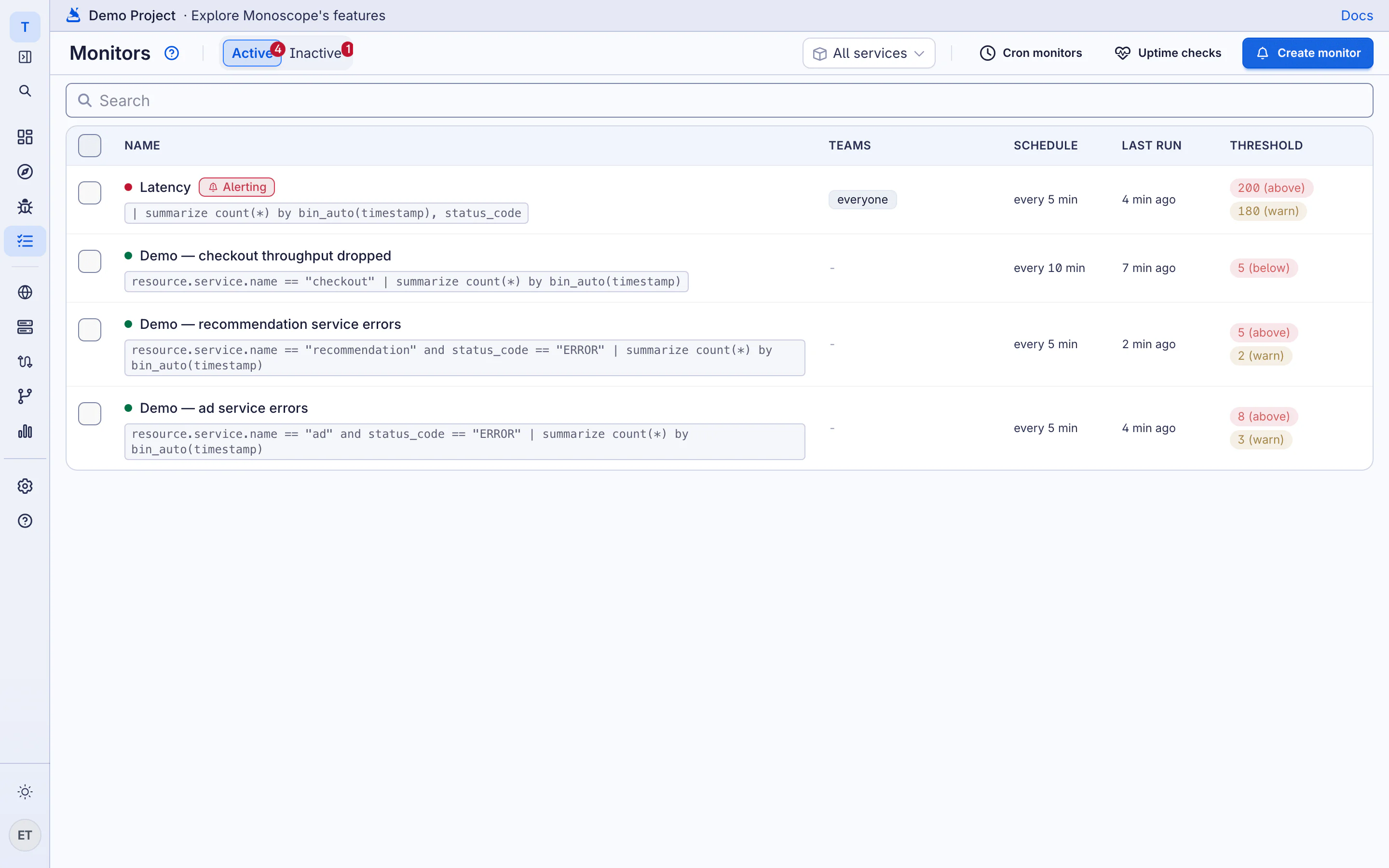
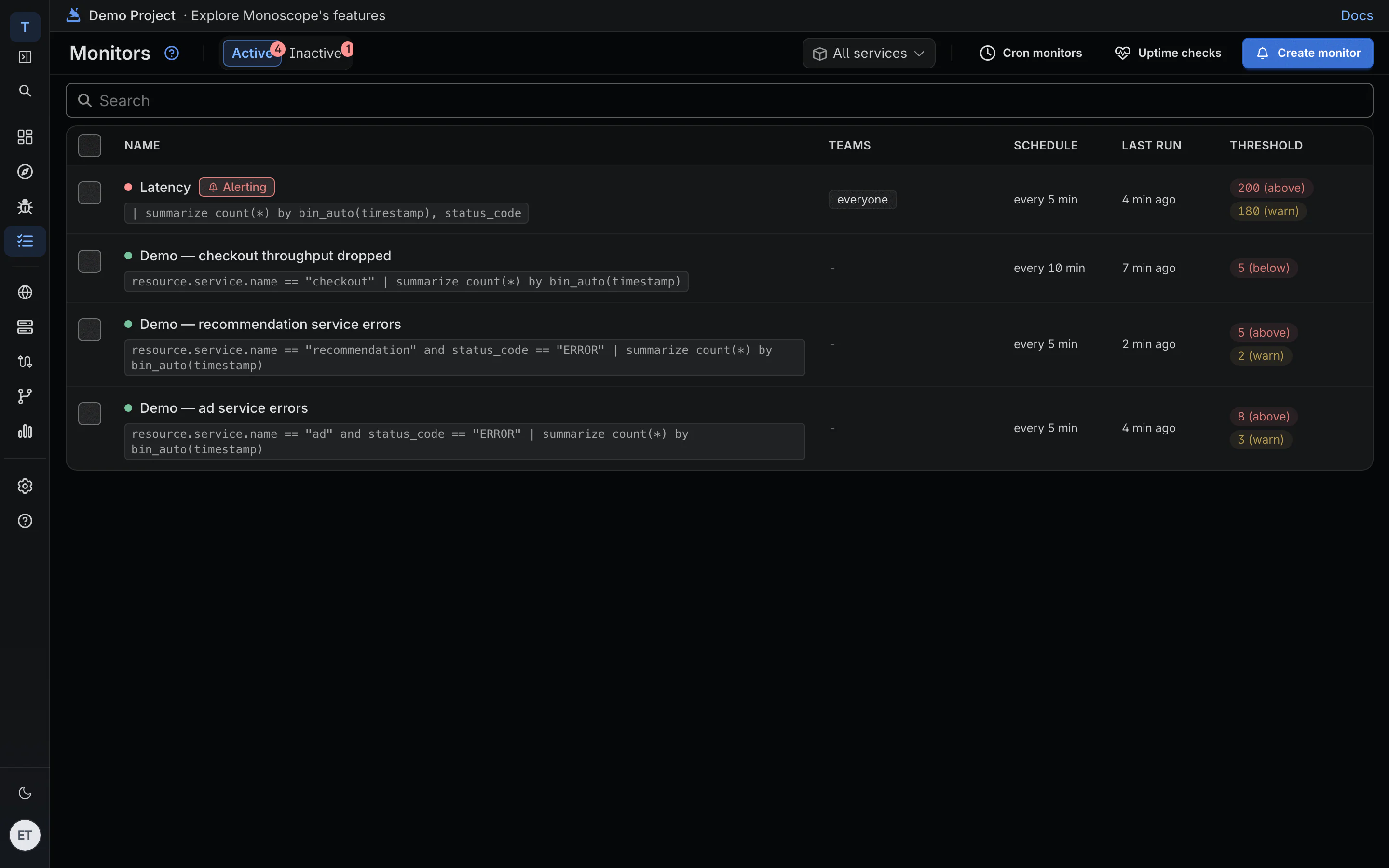
The list shows each monitor’s query, the teams it notifies, its schedule, its last run and its thresholds. A monitor that is over its threshold shows Alerting. Use Active and Inactive in the sidebar to filter the list.
Create a Monitor
-
Open the Explorer and write a query for the events to watch. A monitor that counts errors from one service looks like this:
resource.service.name == "checkout" and level == "ERROR" | summarize count(*) by bin_auto(timestamp) -
Select Create monitor under the query bar.
-
Under Monitor Schedule, set how often to Execute the query and the time window in Include rows from.
-
Under Alert when, select A chart threshold is crossed or the query has any results.
-
Under Thresholds, set the Alert threshold and, if you want an early warning, the Warning threshold. Set Trigger condition to Above threshold or Below threshold. A monitor for a traffic drop uses Below threshold.
-
Under Notification Settings, select the Teams to notify.
-
Click Create monitor.
You can also add a monitor to any dashboard widget. See Dashboards.
On the free plan, a monitor runs at most once an hour.
Notification Settings
Open Advanced notification settings to change what the alert says and how often it repeats:
- Severity: Info, Warning, Error or Critical.
- Subject and Message: the text of the alert. Message preview shows the result.
- Renotify every: send the alert again while the monitor stays over its threshold, from every 10 minutes to every 24 hours.
- Stop after: the maximum number of repeat notifications.
- Alert recovery: set recovery thresholds if the monitor must recover at a different value than it triggered at.
Alerts go to the channels of the selected teams: email, Slack, Discord, WhatsApp or PagerDuty. To set up channels, see Integrations. Each alert also opens or updates an issue.
Manage Monitors
Click a monitor to open Monitor Overview. It shows the current value, the query results and the Execution History. From the list or the overview you can:
- Mute a monitor to silence its notifications for a period.
- Resolve a monitor to reset its status to normal.
- Deactivate a monitor to stop its evaluations. Activate starts them again.
Uptime Checks
An uptime check requests a URL on an interval. Two failed checks in a row open a downtime issue. The next successful check resolves it.
To add a check, open Monitors and click Uptime checks at the top right. Enter a Name and a URL, select the interval in Every, set the status code to Expect, and click Add check.
Cron Monitors
A cron monitor alerts you when a scheduled job does not run or fails. Each run of the job sends a span or a log named cron.checkin with two attributes:
-
monitor.slug: the slug of the cron monitor. -
monitor.status:okorerror.
A missed run or a run with error opens an issue. To add a cron monitor, open Monitors and click Cron monitors at the top right. Enter a Slug and a Name, select how often the job Runs every, select the Grace period, and click Add monitor.