

Metrics and Service Map
The Metrics and Service Map tabs are in the Explorer. Metrics shows every metric that your project receives. Service Map shows which services call which, with the error rate, latency and traffic of each.
Metrics
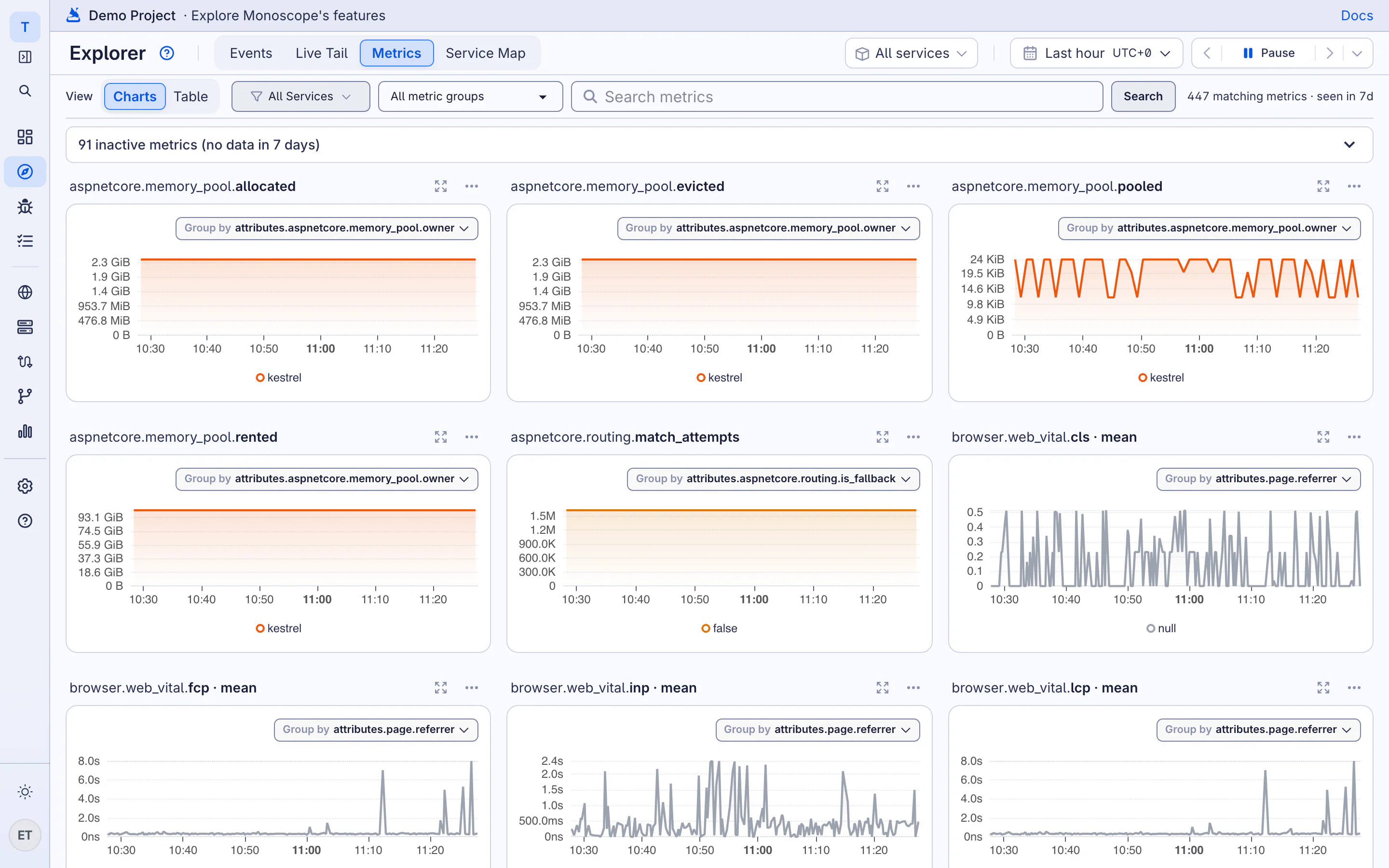
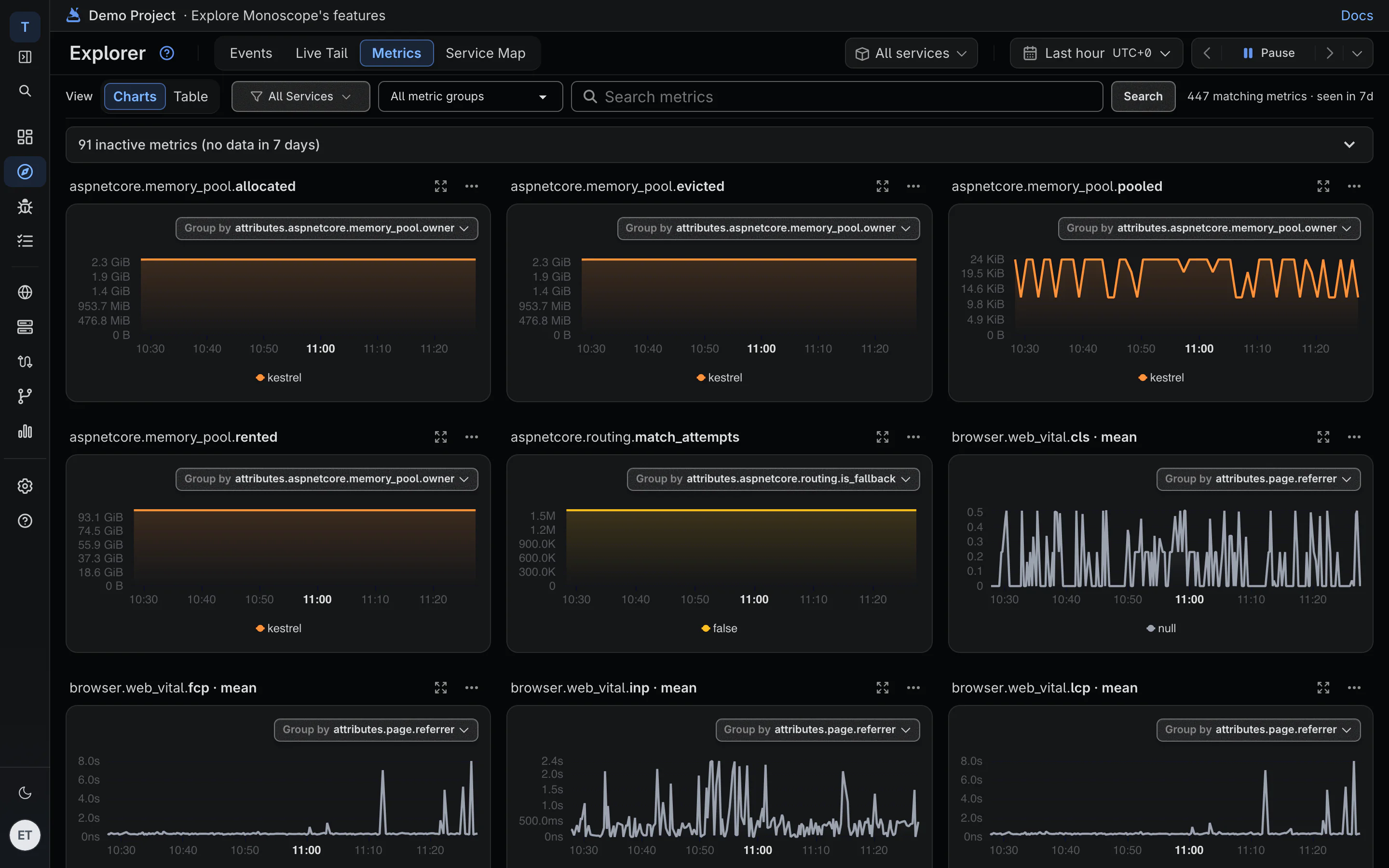
Metrics come from the OpenTelemetry SDKs and the OpenTelemetry Collector, or from your Prometheus endpoints. To scrape a Prometheus endpoint, see Prometheus.
The page shows one chart for each metric that sent data in the last 7 days. To find a metric:
- Type part of its name in Search metrics.
- Select a service in All Services.
-
Select a prefix, such as
httpork8s, in All metric groups.
Switch Metric view between Charts and Table. Use Group by under a chart to split it into one series for each value of an attribute.
Click a metric to open its details:
- Dimensions: the attributes of the metric. Select one to split the chart.
- Exemplars: traces that the metric recorded a data point in, slowest first.
- Related metrics: metrics with a similar name or the same dimensions.
To chart a metric on a dashboard or alert on it, write a query on the metrics source. Use rate() or increase() for counters and last() for gauges:
metrics | where metric_name == "http.server.request.count" | summarize rate(value) by bin_auto(timestamp), attributes.http.route
Service Map
The service map draws your services from left to right in the direction that requests flow. monoscope builds it from your traces, so it needs no setup.
- Each node shows the error rate, the latency and the requests per second of a service.
- An Instrumented service sends its own telemetry. An Uninstrumented dependency, such as a database or a third-party API, is seen only in the spans of the services that call it.
- Colors mark Elevated errors (1%+) and Failing (5%+) services.
Use Filter services and the Env picker to show part of the map.